FTP is a method to transfer files (documents, images, ...) over the Internet from one computer to another. FTP stands for File Transfer Protocol.
The best thing you can use is a specific FTP program. For PC you can use WSFTP, for Macintosh there is Fetch. Both can be downloaded from our anonymous FTP server (WSFTP, Fetch) and both are free to use for educational institutions. Note: you can also use recent Internet/Web browsers to transfer files with FTP.
FTP uses the so-called client/server model. On one side, there is the customer - you - and on the other side there is a server, on which files are stored. If one wishes to store or retrieve files to/from a server, simply start your FTP program, and specify the hostname of the server, and a username and password. Once you have logged on succesfully, you will be able to browse through the files and directories on the remote server, and upload and download files. (3)
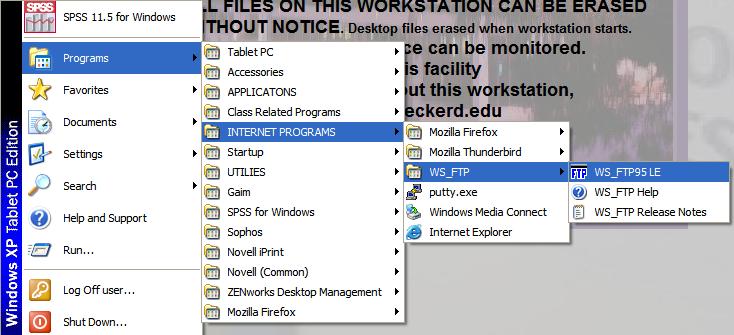
To start the application, go into the Start menu, you will find the WS_FTP application in Programs/INTERNET PROGRAMS/WS_FTP/WS_FTP95LE
WS_FTP comes with a number of profiles, these are particular configurations for particular servers. To connect, choose one of the existing profiles, enter your login name in the field labeled "User ID", and click "OK". You may also enter your password, however if you do not, you will be prompted to do so.
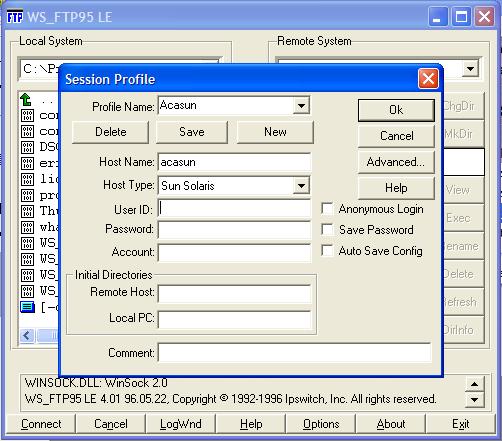
If you don't see the Profile windows, you can click on the Connect button to open it.
Once you have successfully logged onto the server, you will see that the main window is split in two. The left side shows the contents of the directory on your local computer (the tablet here in the lab). The right side shows the files and directories in your home directory on the server.
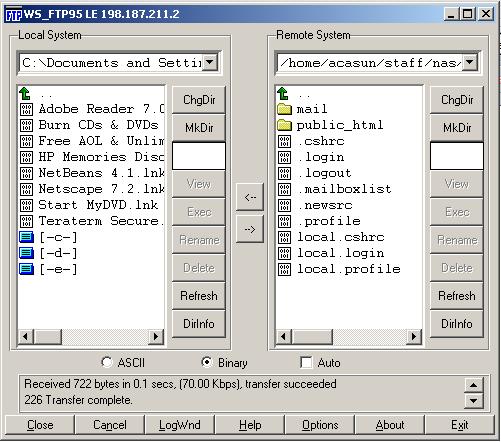
To position yourself correctly on the local computer, click on the green arrow in the left pane to move up to the C: directory, then select "Documents and Settings", "user", "Desktop".
To Position yourself correctly on the remote computer (the server), double click on the public_html directory in the right pane.
To transfer a file, select the file you wish to transfer, make sure to select the correct type of transfer (text files are to be transferred in ASCII, binary files such as images (gif, jpg,...), PDF files, Word, Excel and Powerpoint files (.doc, .xls and .ppt) have to be transferred in Binary) and click either of the arrows between the left and right part to transfer the file to the other "side" (in the example , we have changed to another directory on the server with the ChgDir button and we will transfer a file from the server to the local computer).
The transfer will start...
... and after the transfer your file show up on the other side. You can transfer other files if you need to. After you have transferred all your files, click the Close button at the left-bottom of the Window to close the FTP session. To quit WSFTP, click the Exit button on the bottom-right side.
You can browse through the other buttons if you wish. As you see there is a Help button.